Search Console AI-powered configuration: check the suggested filters
Follow a tested Search Console prompt from request to report settings. Check dates, countries, devices, and metrics before interpreting the resulting chart.
 Harlan Wilton
Google Search Console's AI-powered configuration turns a written request into Performance report settings. Start with a question that names the data you want: a date range, a country, a device, and the metrics to show.
The useful part comes before you apply the suggestion. Read the settings and check that Google understood your request.
Try one specific request
In the Search results Performance report, choose the AI configuration button beside Add filter. Its accessible label is Customize your Performance report using AI in the interface captured below.
Enter this prompt, or replace the dates and country with your own:
Show clicks and impressions for mobile devices in Australia from August 1 to August 31, 2026.
Select Submit. In this test, Search Console proposed Aug 1–31, 2026, Australia, and Mobile.
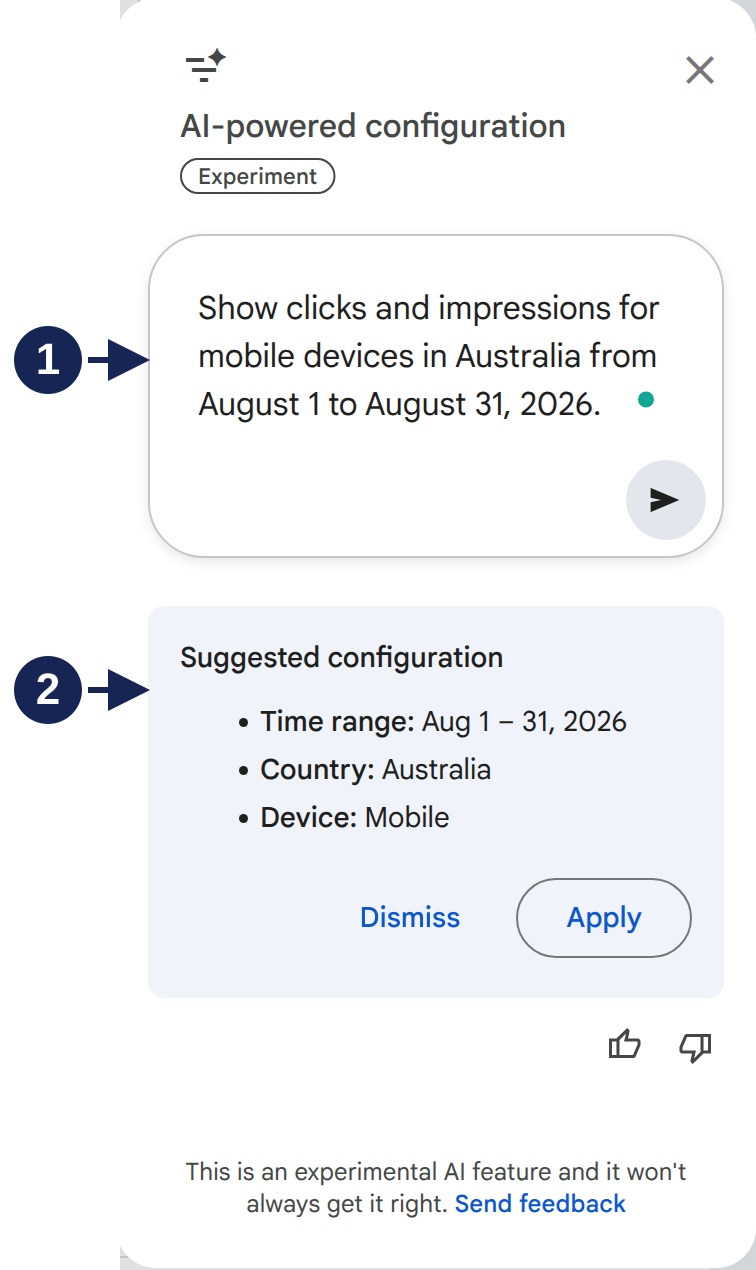
Open the suggestion at full size.
Marker 1 identifies the request. Marker 2 identifies the suggestion to review. Compare each part before choosing Apply:
| Requested | Check |
|---|---|
| August 1 through August 31 | Both endpoints belong to August 2026. |
| Australia | The filter describes the searcher's country. |
| Mobile devices | The suggestion says Mobile. |
| Clicks and impressions | Both metric cards are selected after applying. |
In this test, Apply opened the report with the requested country and device filters. Clicks and impressions were selected. The suggestion panel didn't list the metrics, so checking the resulting report mattered.
That verifies one request in one account. It doesn't establish that every phrasing produces the same settings.
Repair the setting before reading the result
A request such as “show Australian mobile traffic” leaves the dates unstated. “Show my blog traffic” might also leave Google to infer which page addresses belong to your blog.
Use exact dates and a specific page condition when those distinctions matter. If a suggestion chooses the wrong field, dismiss it and clarify the request. You can also apply the filters manually using the standard report controls.
Keep a small report with few rows in context. Adding a country and device filter narrows the question considerably. Before treating a quiet chart as a site-wide decline, remove those filters and inspect the broader report.
What the feature is intended to do
Google's configuration announcement describes filters, date comparisons, and metric selection. It warns that suggestions can misunderstand requests. The announcement limits the feature to Search results and excludes sorting and exporting.
“Why did traffic fall?” asks for an explanation. A more useful configuration request identifies the comparison you want to inspect. You still need to investigate the pages and queries behind the change. The content decay report lists the pages that lost the most clicks.
Google launched this as an experiment in December 2025, and the account captured here still carried that label. If the button is missing, use the manual controls; this capture doesn't establish availability for your property.