Search Console annotations: record changes beside your traffic
Add a dated note to your Search Console chart. Learn what to record, how to investigate a change, and why annotations disappear from some views.

When you update a page or change a template, add a custom annotation to your Google Search Console Performance chart. The note gives you a date to return to when traffic changes later. Google introduced custom annotations for events such as content updates, migrations, and seasonal changes.
Write what happened. Leave the explanation of its effect until you've checked the data.
Add a note for a real change
You need owner or full-user access to add a note. Open your Performance report and use a normal date range, such as 3 months. Annotations don't appear in comparison mode or the 24-hour view.
- Right-click the chart near the date of the change, then choose Add annotation.
- Check the Date field. Use the date the change went live, rather than the date you remembered to record it.
- Enter a short factual note, then choose Add.
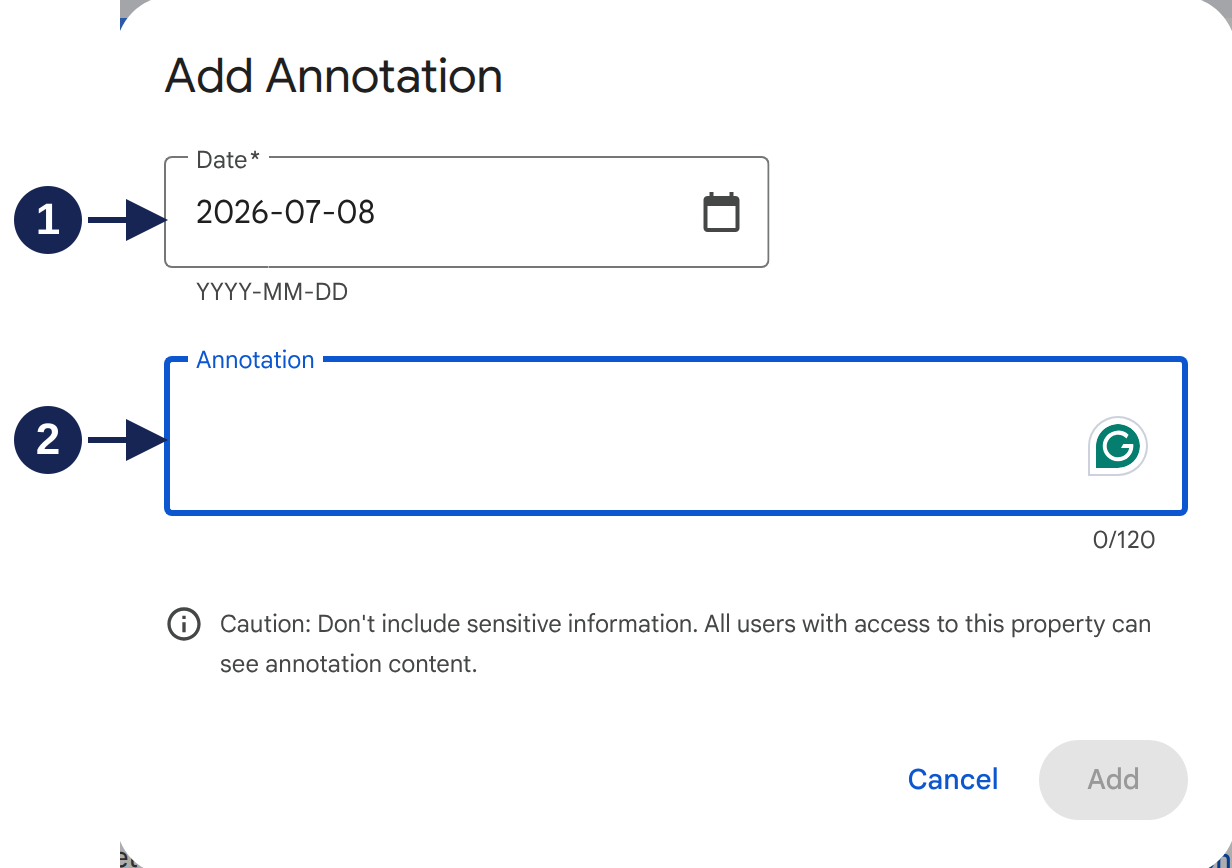
Open the annotation form at full size.
Marker 1 identifies the date. Marker 2 identifies the note. The screenshot's selected date comes from the chart position used to open the form; it doesn't record a site change.
For a hypothetical guide update, a useful note would be:
Updated delivery guide: added shipping times and revised page title.
That tells a future reader which page changed and what to inspect. “SEO improvements” leaves them guessing. Keep longer details in your own change log.
Notes allow 120 characters. Everyone with access to the property can read them, so leave personal information out. Google's annotation guide also explains who can create and remove notes.
Use the date to investigate
The annotation records publication, not when Google adopted the change. Google needs to recrawl and reprocess the page before a changed title can appear. Compare the edit date with dated URL Inspection evidence and the displayed result. Google Search processing timelines explains why these dates can differ.
Suppose the delivery guide gains impressions after that update. Start with the page itself: apply a page filter and inspect the dates around the annotation. Then look at the queries contributing to the change.
You might find that one newly covered question accounts for the rise. Or the increase might also appear on pages you didn't update. Those lead to different follow-up questions. The annotation records the timing; it cannot establish that the edit caused the result.
For a broader trend, use weekly views. Return to Daily when you need to locate a particular change. Keep the date and note in your change log before switching into a comparison, where the marker disappears.
If a marker is missing or a note is wrong
Check the selected dates and view first. Filters don't hide annotations, but comparison mode and 24 hours do.
Google allows owners and full users to add or delete notes. Restricted users can read them. Editing isn't available: correcting a saved note means deleting it and adding the corrected version. Confirm the date and wording before removing a shared note.
A property can hold 200 annotations, and Google automatically deletes annotations older than 500 days. These are annotation limits, so keep your long-term change log elsewhere.